Managing passcode rules
Passcode rules define a set of guidelines device users must follow when creating device passcodes, such as the passcode length, types of characters they can include, what happens after a failed unlock attempt, and many others.
New passcode rules can be created in the library, then applied to devices. Passcode rules can also be applied to one or more devices using a policy. Passcodes can then be managed by editing rule sets in the library. You can apply passcode rules to managed Android Personal, Android Work, Android Fully Managed, iOS, macOS, and Windows devices.
If you have previously applied passcode restrictions to any of your devices, those restrictions will remain in place.
When working with devices: Choose the Passcode Rules tab in the right panel to clear a default passcode rule set or view details of the rule set. Under the More Actions dropdown, an admin can clear a passcode, which unlocks the selected device until a new passcode is set. On iOS devices, clearing the passcode disables Touch ID.
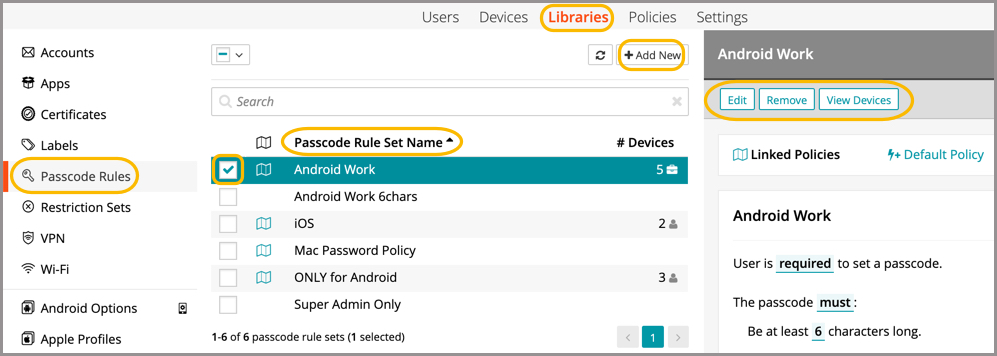
When working in the Passcode Rules Library (shown below): Administrators can add a new passcode rule set to the library; edit or remove a passcode rule set; and view all devices with a specific rule set applied.
Auto-Lock Timeout: The auto-lock timeout specifies the maximum amount of time that a device may be idle before it will automatically lock. Some device users may prefer a shorter time, but they can not choose a longer time when the restriction is set.
Device Lock Grace Period: The device lock grace period is the amount of time that may pass after the device locks but before a passcode is required in order to unlock the device. This option is only available on iOS devices.